 | Dev Portal
Import results from third-party tools (limited availability)
Run external analysis tests to import SAST and SCA issue data from third-party tools into SAST & SCA projects in Polaris.
Overview
With a subscription that permits external analysis tests, you can import SAST and SCA issue data from many third-party tools into SAST & SCA projects in Polaris.
Please note:
- Imports can only be run from the Polaris user interface, and run like other tests.
- SAST issues you import from third-party tools are subject to file and folder exclusion rules. See Exclude files and folders from tests for more information.
- Issues without a valid severity are ignored.
- You can upload one file (up to 2GB in size) for each external analysis test.
- Each file you upload can only include one type of issue data (SAST or SCA).
- Different file formats are accepted for different third-party tools. Find a list of third-party tools that generate results you can import into Polaris here: Supported third-party tools.
- Issues you import from third-party tools:
- Appear on the Issues tab (Portfolio > select an application > select a project > Issues), but do not affect the Components or Licenses tabs.
- Appear in reports and dashboards, but the components and licenses associated with issues you import do not.
Import results from third-party tools
-
Drag and drop the file you want to import into the Import Results zone, or select Browse Files to find the file to import on your file system.
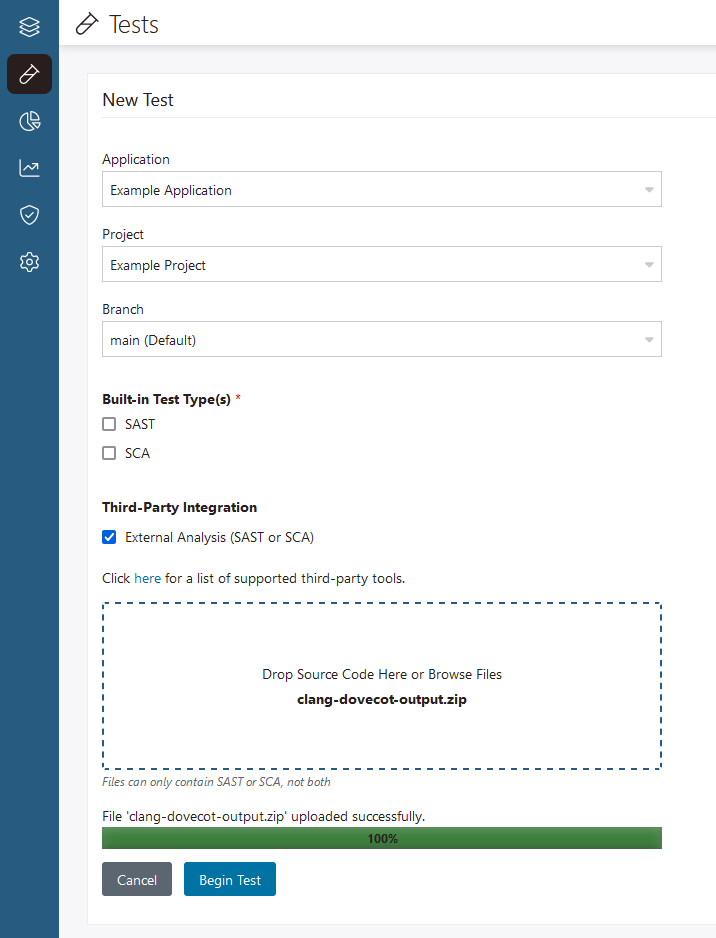
Note: You can upload one file (up to 2GB) for each external analysis test. Each file you upload can only include one type of issue data (SAST or SCA). Different file formats are accepted for different third-party tools. See Supported third-party tools for a full list of supported tools, along with accepted file formats for each.
View and manage issues imported from third-party tools
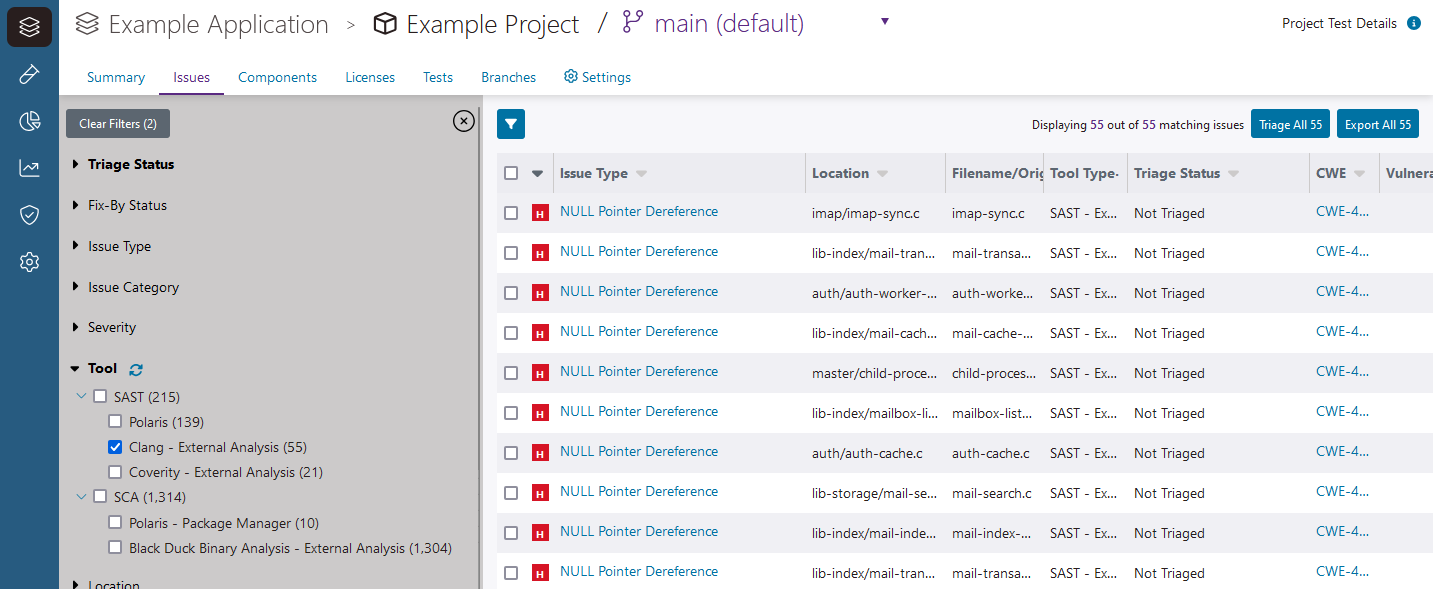
Issues you import from third-party tools can be triaged and exported (to CSV, JSON, or Jira) like other issues in Polaris, and are subject to issue policies and file and folder exclusion rules.
Issue deduplication
- Polaris deduplicates issues captured using the same third-party tool (if you run multiple external analysis tests to import results from Clang into a project, Polaris won't duplicate the same issue found in different external analysis tests that import results from Clang).
- Polaris does not deduplicate issues imported from different third-party tools in the same project (if the same issue is captured in external analysis tests using exports from Clang and Coverity, the issue appears twice on the Issues tab).
- Polaris does not deduplicate issues captured in external analysis tests from issues captured in other test types in the same project (if the same issue is captured in a SAST test run with Polaris and an external analysis test, the issue appears twice on the Issues tab).
Triage information
Where supported, triage information is included in SAST and SCA issue data imported from third-party tools. Triage information consists of changes to an issue's triage status and the addition of triage comments.
Triage information is displayed in the Issue History panel. Imported issues are attributed to a user in the third-party tool or the "System" user, if user information is unavailable. Polaris does not link usernames in imported triage information to Polaris usernames, even if names or email addresses match.
How is triage status determined?
In SAST and SCA issues imported from third-party tools, the triage status is:
- Mapped from the third-party tool to the equivalent triage status in Polaris.
- Not Triaged if triage information is unavailable to import.
The latest triage status is determined by the most recent triage event that occurred in either Polaris or the third-party tool. This means that older triage events you import from third-party tools may be added to an issue's history, without changing its most recent triage status.
See View issue history for more information about viewing triage and detection history.
Triage status mappings
In triage events imported from third-party tools, the triage status is mapped from the supported third-party tool to the equivalent status in Polaris. The following tables show the mappings used for each supported third-party tool (a hyphen indicates that an equivalent status value is unavailable or undefined in the third-party tool).
| SAST Tools / Polaris Triage Status | Dismissed [Reason: Intentional] | Dismissed [Reason: False Positive] | To Be Fixed | Dismissed [Reason: Other, Comment: Issue marked as mitigated] | Dismissed [Reason: Other, Comment: Reported as fixed] | Not Triaged [Comment: Issue re-opened by tool] |
|---|---|---|---|---|---|---|
| Android Lint | - | - | - | - | - | - |
| Brakeman | - | - | - | - | - | - |
| Checkmarx (SAST) | NOT_EXPLOITABLE / 1 | False Positive | URGENT / 3; CONFIRMED / 2 | - | - | - |
| Checkstyle | - | - | - | - | - | - |
| Clang | - | - | - | - | - | - |
| Clippy | - | - | - | - | - | - |
| CodePeer | not a bug | false positive | - | - | - | - |
| Coverity | Intentional, ignore | False Positive | - | - | - | - |
| DefenseCode ThunderScan | - | false positive | - | - | - | - |
| ErrCheck | - | - | - | - | - | - |
| error-prone | - | - | - | - | - | - |
| ESLint | - | - | - | - | - | - |
| Fortify | Suppressed, Not an Issue | - | Exploitable, Suspicious, Reliability Issue, Bad Practice | - | - | - |
| Gendarme | - | - | - | - | - | - |
| GitLab Security | - | - | - | - | - | - |
| GoCyclo | - | - | - | - | - | - |
| GoLint | - | - | - | - | - | - |
| GoSec | - | - | - | - | - | - |
| HCL AppScan Source | - | noise | - | passed | fixed | reopened |
| HCL AppScan on Cloud (ASoC) | - | noise | - | passed | fixed | reopened |
| Helix QAC | - | - | - | - | - | - |
| IneffAssign | - | - | - | - | - | - |
| JLint | - | - | - | - | - | - |
| Microsoft Code Analysis | - | - | - | - | - | - |
| MobSF | - | - | - | - | - | - |
| MobFS Scan | - | - | - | - | - | - |
| NDepend | - | - | - | - | - | - |
| OCLint | - | - | - | - | - | - |
| Parasoft JTest / C++Test / dotTest | - | - | - | - | - | - |
| PHPMD | - | - | - | - | - | - |
| PMD | - | - | - | - | - | - |
| Pylint | - | - | - | - | - | - |
| Rapid Scan SAST | - | - | - | - | - | - |
| SafeSQL | - | - | - | - | - | - |
| SARIF | - | - | - | - | - | - |
| SATE | - | - | - | - | - | - |
| Scalastyle | - | - | - | - | - | - |
| SCARF | - | - | - | - | - | - |
| Semgrep | - | - | - | - | fixed | - |
| SonarQube / SonarCloud | WON'T FIX, SAFE | FALSE POSITIVE | ACKNOWLEDGED | - | FIXED | REOPENED |
| SpotBugs / FindBugs | - | - | - | - | - | - |
| Staticcheck | - | - | - | - | - | - |
| TruffleHog | - | - | - | - | - | - |
| Veracode | Accept the Risk | Potential False Positive | Reported to Library Maintainer | Mitigate by Design, Mitigate by Network Environment, Mitigate by OS Environment | - | - |
| Component Tool / Polaris Triage Status | Dismissed [Reason: Intentional] | Dismissed [Reason: False Positive] | To Be Fixed | Dismissed [Reason: Other, Comment: Issue marked as mitigated] | Dismissed [Reason: Other, Comment: Reported as fixed] | Not Triaged [Comment: Issue re-opened by tool] |
|---|---|---|---|---|---|---|
| Black Duck Binary Analysis | - | - | - | FD (feature disabled) | VP (vendor patched) | - |
| Checkmarx One (SCA) | NOT_EXPLOITABLE; PROPOSED_NOT_EXPLOITABLE | - | URGENT; CONFIRMED | - | - | - |
| Dependency-Check | - | - | - | - | - | - |
| GitLab Security | - | - | - | - | - | - |
| JFrog Xray | - | - | - | - | - | - |
| Retire.js | - | - | - | - | - | - |
| Snyk Open Source | Ignored | - | - | - | Patched | - |
| Veracode | Accept the Risk | Potential False Positive | Reported to Library Maintainer | Mitigate by Design, Mitigate by Network Environment, Mitigate by OS Environment | - | - |