Create DAST projects for web applications and APIs

Create a DAST project in Polaris to run dynamic tests (DAST) against your organization's web applications and APIs. Configure basic settings—including the entry-point URL, target type, and authentication method—and then create the DAST project and associated profile.

Prerequisites

Before you begin, make sure that:

  • Your organization has a subscription with a DAST entitlement.
  • You have permissions to create and manage projects.
    Note: See Roles and permissions for more information.
  • Your subscription has at least one available DAST project.
  • An Organization Admin or Organization Application Manager has either:
  • Polaris has network access to the web application or API you want to scan (only required for external targets). To run DAST tests on external targets, Polaris communicates with your Internet-accessible applications or APIs using IPs that vary between Polaris instances.
    Table 1. fAST Dynamic (DAST) IPs
    Polaris instance IPs (outbound)
    America, production
    • 192.231.134.0/24
    America, POC
    European Union, production
    • 162.244.5.0/24
    Kingdom of Saudi Arabia, production
  • If you want to start DAST tests directly from Black Duck Bridge or a CI/CD pipeline, Bridge CLI version 3.7.0 or later is required.

Additional prerequisites for scanning internal targets

Running DAST tests on internal web applications and APIs (inside private networks) is supported through the Secure Tunnel feature of the Black Duck Bridge. To use this functionality, you must install the Bridge CLI version 3.1.0 or later. For more details, see Test internal DAST projects with Polaris Secure Tunnel and Connect to an internal DAST target from the Bridge CLI in the Bridge CLI documentation.

Create a DAST project

You can create DAST projects for two types of targets:
  • Web applications
  • APIs

A target is identified by its Entry Point URL and can be Internet-accessible or internal (inside a private network). A separate DAST profile is needed for each target you want to scan using fAST Dynamic. A single DAST project can be used for testing a web application or an API target, but not both.

Create a DAST project for a web application target

To create a DAST project for a web application target, follow these steps:
  1. Select Portfolio on the left sidebar.
  2. Select an application with a DAST subscription.
    The application opens on the Projects tab.
  3. Select Create > New Project(s).
  4. Select the DAST project type.
  5. Enter a Project Name (maximum length: 255 characters).
    Each project name must be unique within the organization.
  6. Enter the Entry Point URL for the web application you want to test (maximum URL length: 255 characters).
    When you run a DAST test on this project, fAST Dynamic will begin scanning from the URL you specify. You must have explicit permission to test the specified web application. The Entry Point URL must be:
    • The address of an Internet-accessible, pre-production web application that you have explicit permission to test.
    • A fully-qualified domain name (FQDN), such as https://example.com/.
  7. If the web application is internal, select the Entry Point URL is in a private network checkbox.
    Note: To learn more about scanning internal targets, see Test internal DAST projects with Polaris Secure Tunnel.
  8. The Configuration options tab is selected by default. On this tab, you can configure basic DAST profile options for a Web Application target, including the site authentication method. The default options are suitable for most use cases.
  9. (Optional) Select the Scan settings tab to adjust the default scan settings. To learn more about the available settings, see DAST scan settings.
  10. Enter a Profile Name. This must be unique within the organization.
  11. (Optional) Instead of using the options on the Scan settings tab, you can configure scan settings and authentication profiles in a JSON settings file. To edit the default settings:
    1. Select Download Scan Settings to download the default scan settings as a JSON file.
    2. Open the scan settings file in a text editor.
    3. Edit the default settings, removing those you do not want to modify, and then save the file.
    4. Select Load Scan Settings File, then select the JSON file on your local machine.
    Tip: For more information about configuring JSON settings, see Configure JSON scan settings and authentication profiles.
  12. (Optional) Select Perform Active Attacks to enable more intrusive testing of the target.
    Warning: If Perform Active Attacks is selected, fAST Dynamic will simulate real-world attacks by sending various inputs and then observing the application's behavior. These attacks can degrade the application, and expose sensitive data. Remember that fAST Dynamic is not designed or intended for scanning public (production) APIs, applications, and websites.
  13. (Optional) In the Allowed Hosts field, enter a comma-separated list of hosts—sub-domains of the Entry Point URL—to include in DAST scans. For example:
    https://app.example.com,https://auth.example.com
  14. Select a site authentication method from the Login Type pulldown. If the web application does not require authentication, or you only want fAST Dynamic to scan non-authenticated portions of the site, leave None (No authentication) selected.
    Authentication Description
    AI-Assisted AI-Assisted Authentication (see Use AI-Assisted Authentication to learn more). When you start a DAST test, the site authentication method is detected and auto-configured using a large language model (LLM) and machine learning techniques. Provide the following:
    • Login URL (required): The URL of the login page of the target web application. Must be accessible to the DAST scanner.
    • Username (required): The username used to log in.
    • Password (required): The password used to log in.
    • OTP Email: The Black Duck MFA email address associated with the DAST project, in the format <project-ID>@mfa.dast.blackduck.com.
    • OTP Time Secret: The one-time password (OTP) Secret configured for the target web application. Only required if the web application uses Time-Based One-Time Password (TOTP) multifactor authentication (MFA) for user logins.
    Note: You can also configure AI-Assisted Authentication by uploading a scan settings JSON configuration file. This method also supports Email MFA. See Use AI-Assisted Authentication for more information.
    Simple Simple form-based authentication through username and password or TOTP MFA.

    Select Add Steps to add one or more login steps for the target web application.

    Select Add Inputs to add input fields and values for the parent login step. An input field can consists of a username and/or a password field or a one-time code field. Provide the following:

    • Identifier Type: Select name, id, xpath, or css.
    • Identifier: The ID of the input identifier.
    • Value Type: Select text for a username or password or totp for a one-time code (for TOTP MFA).
    • Value: The value of the input identifier. For TOTP MFA, enter the secret key that was provided when setting up TOTP for the account.

    Select Add Headers to add an authentication header as a name-value pair.

    To add an authentication cookie, select Add Cookies, enter the cookie Name, and then enter optional properties:
    • Value
    • Domain
    • Path

    Enter the Login URL (required) of the web application, e.g., https://example.com/sign-in

    SAML Single Sign-On (SSO) authentication through a SAML Identity Provider (IdP).

    Select Add Steps to add a login step for the target web application.

    Select Add Inputs to add input identifiers and values for a specified login step.

    Select Add Headers to add HTTP request headers as required by your SAML IDP. Enter one or more headers as name/value pairs using the Header Name and Value fields.

    To add an authentication cookie, select Add Cookies, enter the cookie Name, and then enter optional properties:
    • Value
    • Domain
    • Path

    Enter the SSO Login URL of your organization's SSO login page.

    Selenium Authenticate using a Selenium script (.side file), generated by using the Selenium IDE Chrome plug-in.

    Upload .side file (required): Drag and drop a .side file to the file upload box, or browse for it on your computer.

  15. (Optional) Select Test Connection to run a pre-flight connection test on the target. This ensures that:
    • The Entry Point URL is valid.
    • Polaris can connect and authenticate to the target.
    You can also run a connection test later from the Tests page.
  16. Click Save.
Polaris creates a DAST profile to use with this project and web application target. Now, you can run a DAST test against the project from the Polaris UI, or the Bridge CLI (available in Bridge CLI version 3.7.0 or later).

Before you can test internal targets from the Polaris UI, you need to establish a secure tunnel between Polaris and your private network using the Secure Tunnel feature of the Bridge. For more information, see Test internal DAST projects with Polaris Secure Tunnel.
Note: When you test internal targets using the Bridge CLI, Bridge establishes a secure tunnel automatically. See DAST configuration requirements for more information.

Create a DAST project for an API target

To create a DAST project for an API target, follow these steps:
  1. Select Portfolio on the left sidebar.
  2. Select an application with a DAST subscription.
    The application opens on the Projects tab.
  3. Select Create > New Project(s).
  4. Select the DAST project type.
  5. Enter a Project Name (maximum length: 255 characters).
    Each project name must be unique within the organization.
  6. Enter the Entry Point URL field for the API you want to test (maximum URL length: 255 characters). This must be the base URL of a pre-production API that you have explicit permission to test. Example entry point URL: https://api.altoroj.tinfoilsecurity.com/v2
    Tip: The DAST scanner can only reach endpoints that are accessible from the Entry Point URL. If the API is versioned, remember to specify the version number in the URL path.
  7. If the API is internal, select the Entry Point URL is in a private network checkbox.
    Note: To learn more about scanning internal targets, see Test internal DAST projects with Polaris Secure Tunnel.
  8. Under Target Type, select API.
    The Configuration options tab is selected by default. On this tab, you can configure basic DAST profile options for the target, including the authentication method for the API. The default options are suitable for most use cases.
  9. (Optional) Select the Scan settings tab to adjust the default scan settings. To learn more about the available settings, see DAST scan settings.
  10. Enter a Profile Name. This must be unique within the organization.
  11. (Optional) Instead of using the options on the Scan settings tab, you can configure scan settings and authentication profiles in a JSON settings file. To edit the default settings:
    1. Select Download Scan Settings to download the default scan settings as a JSON file.
    2. Open the scan settings file in a text editor.
    3. Edit the default settings, removing those you do not want to modify, and then save the file.
    4. Select Load Scan Settings File, then select the JSON file on your local machine.
    Tip: For more information about configuring JSON settings, see Configure JSON scan settings and authentication profiles.
  12. (Optional) Select Perform Active Attacks to enable more intrusive testing of the target.
    Warning: If Perform Active Attacks is selected, fAST Dynamic will simulate real-world attacks by sending various inputs and then observing the application's behavior. These attacks can degrade the application, and expose sensitive data. Remember that fAST Dynamic is not designed or intended for scanning public (production) APIs, applications, and websites.
  13. (Optional) In the Allowed Hosts field, enter a comma-separated list of hosts—sub-domains of the Entry Point URL—to include in DAST scans. For example:
    https://api.altoroj.tinfoilsecurity.com/v2/auth
  14. Under Authentication, select the authentication method for the API from the Login Type pulldown. fAST Dynamic supports the following API authentication methods:
    Authentication Description
    None (default) No authentication. Clients can query the API without providing credentials or an API key.
    Headers Header-based authentication. To query the API, clients must provide credentials or an API key stored in one or more HTTP authorization headers.
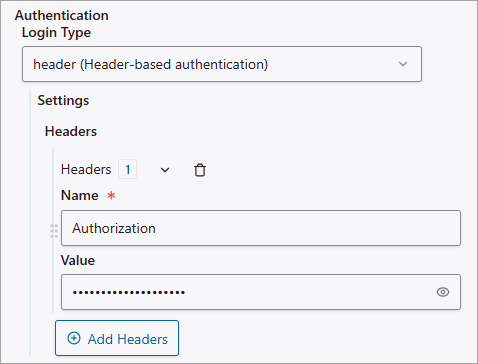
  15. If you selected Headers, use the Add Headers buttons to provide one or more headers in the Name and Value fields. You can provide any type of header, though these options are intended for authorization headers, such as a base-64 encoded API key. For example:

  16. Select the format of your API specification file from the API Specification Type pulldown. fAST Dynamic supports the API specification types and file formats:
    • OpenAPI / Swagger Specification (.yml, . yaml, .json) (default)
    • Postman Collection (.json)
    • HTTP Archive File (.har)
    • GraphQL SDL (.sdl)
    • GraphQL Introspection URL
  17. Under API Specification Source, provide a specification file for the API you want to test. This must correspond to the Entry Point URL of the API (see step 6). Use one of the following methods to provide the file:
    API Specification Type Steps
    OpenAPI To upload an OAS file:
    1. Select Upload API Specification File.
    2. Drag a supported API specification file from your local machine into the upload box, or click the box to select a file to upload.
    To provide the URL of a publicly hosted OAS file:
    1. Select API Specification File URL.
    2. Enter the URL where the Open API specification file is hosted in the API Specification URL field; for example: https://api.altoroj.tinfoilsecurity.com/v2/swagger.json. This must be accessible to Polaris.
    Postman, HTTP Archive File, GraphQL SDL Drag a supported API specification file from your local machine into the upload box, or click the box to select a file to upload.
    GraphQL Introspection URL Enter the URL to your GraphQL introspection file in the GraphQL Introspection URL field. This must be accessible to Polaris.
  18. (Optional) Select Test Connection to run a pre-flight connection test on the target. This ensures that:
    • The Entry Point URL is valid.
    • Polaris can connect and authenticate to the target.
    You can also run a connection test later from the Tests page.
  19. Click Save.
Polaris creates a DAST profile to use with this project and API target. Now, you can run a DAST test against the project from the Polaris UI, or the Bridge CLI (available in Bridge CLI version 3.7.0 or later).

Before you can test internal targets from the Polaris UI, you need to establish a secure tunnel between Polaris and your private network using the Secure Tunnel feature of the Bridge. For more information, see Test internal DAST projects with Polaris Secure Tunnel.
Note: When you test internal targets using the Bridge CLI, Bridge establishes a secure tunnel automatically. See DAST configuration requirements for more information.

Test a DAST project

Follow these steps to run a DAST test from the Polaris user interface:

  1. There's more than one way to start this procedure:
    • Go to Portfolio, select an application, click the three-dot icon at the end of the project's row, and select New Test.
    • Go to Tests and select New Test.
  2. Select the DAST profile to scan with the Application and Project dropdown menus.
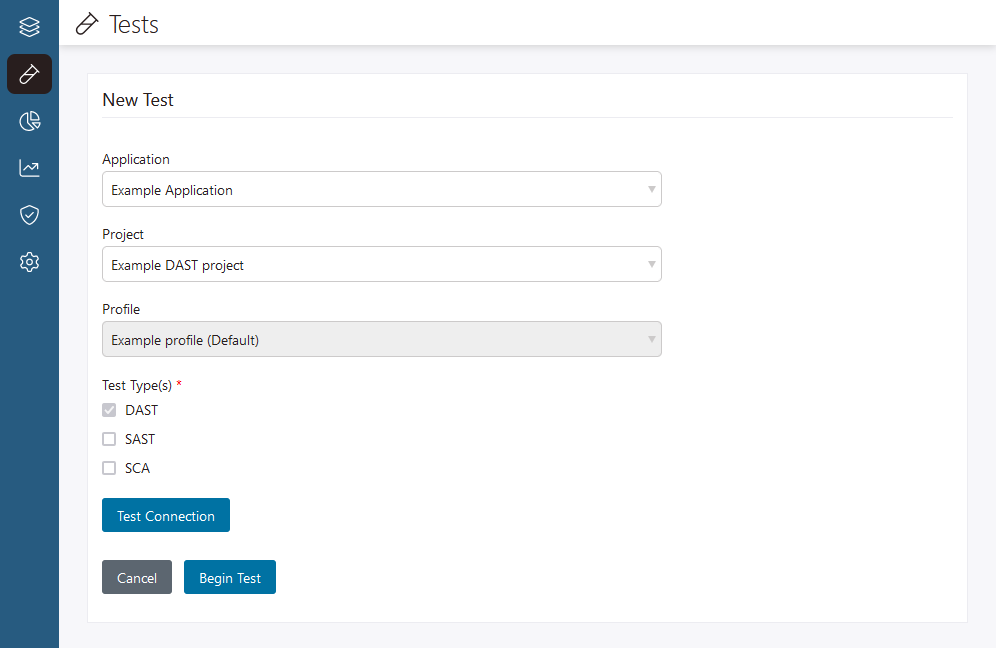

    Note: Depending on how you start a test, the Application, Project, and Profile values may already be filled in.
  3. (Optional) Select Test Connection.
    This test can take a few minutes to complete and ensures:
    • The Entry Point URL is valid.
    • Polaris can connect to the web application.
    • Polaris can authenticate with the web application.
  4. Select Begin Test.
Monitor test progress on the Tests page (accessible from the left-hand navbar). Newer tests appear near the top of the page. Filter tests by date, type, mode, status, and the application, project, or branch/profile tested.