 | Dev Portal
Pull/merge request policies
Use pull/merge request policies to enable pull request comments.
Important: If you assign a pull/merge request policy to an
application, project or branch that isn't connected to an SCM repository and does
not fill the prerequisites below, it will not function as expected.
Pull/merge request policy overview
When using Event-Based Test Automation, this policy allows you to turn on pull request comments at the application, project or branch level.
Note: Pull request comments are also available with
integration via the Bridge. This information is for pull request comments from
SCM Integrations via Polaris.
Prerequisites
The following prerequisites must be met to use pull/merge request policies:
- Using GitHub SaaS.
- Onboarded to Polaris using SCM Integrations and Event-Based Test Automation has been enabled. See Event-Based Test Automation in Polaris for SCM Integrations.
- “A new pull request is created or updated” has been selected (either default or non-IDE branches) in your test automation.
Note: For the first test, or when you run a full analysis after a rapid scan, expect a high number of pull request comments.
Rules
You can add up to five rules to each pull/merge request policy. Rules control what actions occur when test results match the filter (when issues with specific properties are detected in a test). Set up rules to monitor tests for issues with any combination of the following properties:
- Issues with different fix-by statuses.
Table 1. Fix-by statuses Fix-by status Description Overdue The issue was not fixed before its fix-by date. Due Soon There are 7 or fewer days before the issue must be fixed. On Track There are 8 or more days before the issue must be fixed. Not Set The issue does not have a fix-by date. - Issues captured in SAST or SCA scans.
- Issues with specific severities.
- Issues with specific triage statuses (including dismissed due to a component being excluded).
- Issues from a particular standard (for example, OWASP® Top 10 API Security Risks 2023).
- Issues with specific Common Weakness Enumeration (CWE™) codes.
Action
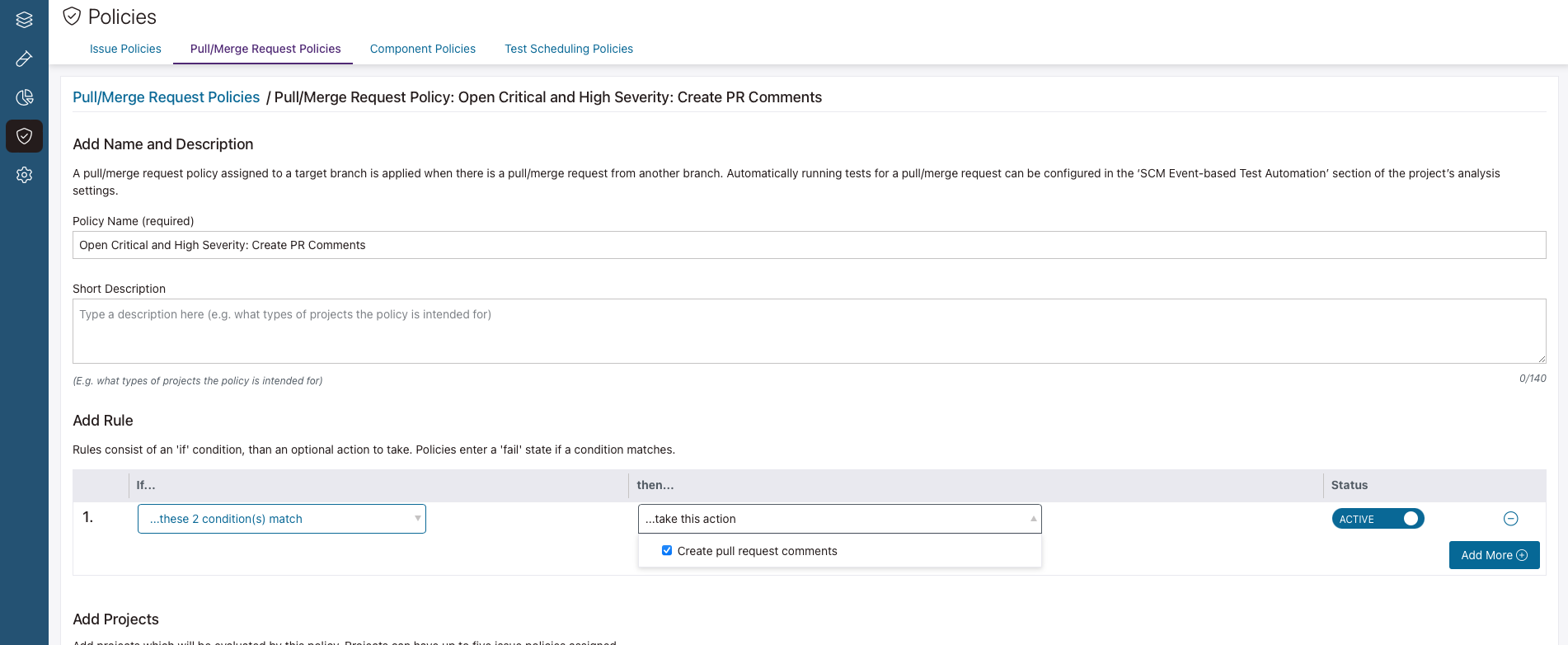
If your rule is matched, then a pull request comment is created.
Note: You can add any action to a rule, but actions only function as expected when the prerequisites are met, and only run after a test is complete.
View a pull/merge request policy's details
-
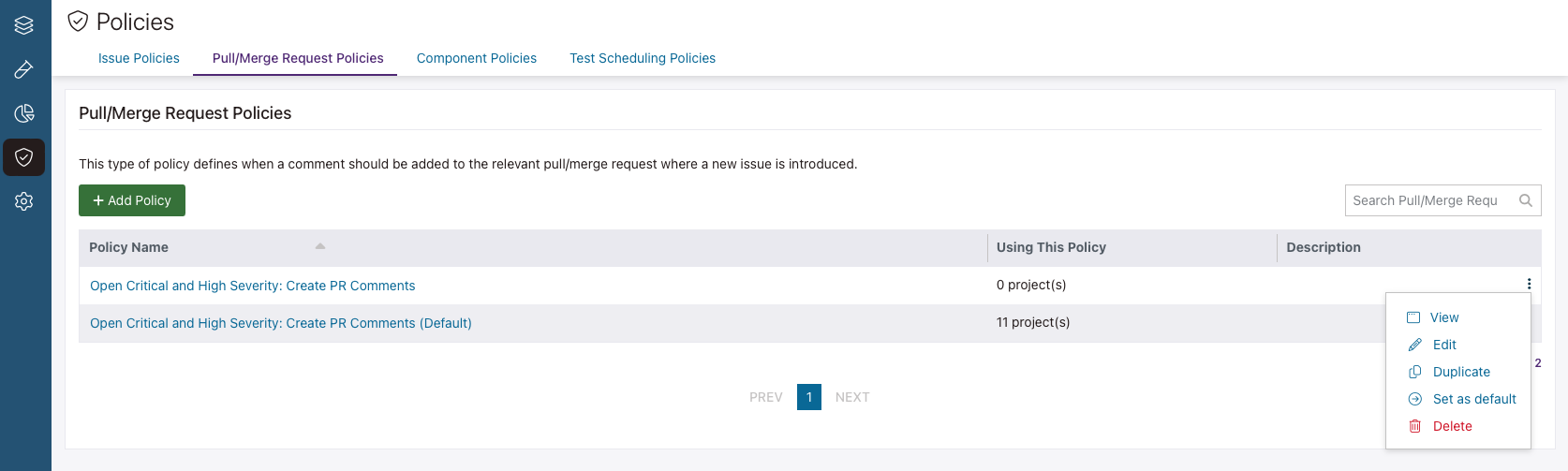
Click the options
 icon at the end of the policy's row and select View.
Create a pull/merge request policy
-
Click + Add Policy. The Add Pull/Merge
Request Policies screen appears.
Tip: Instead of creating a new policy, you can use an existing policy as a starting point (and adjust the policy as you wish). Click the icon at the end of a policy's row and select Duplicate.
Modify a pull/merge request policy
- Go to Policies and open the Pull/Merge Request Policies tab.
-
Click the options icon at the end of the policy's row and select Edit.
- Modify the policy, as required.
- Select Save.
Change your organization's default pull/merge request policy
-
Click the options icon at the end of the policy's row and select Set as default.
A confirmation appears.
Delete a pull/merge request policy
-
Click the options icon at the end of the policy's row and select Delete.
A confirmation appears.